
 Cassettefrom $1,312

How do I connect my MRCOOL mini split to Wi-Fi?
Short answer: Download the MRCOOL SmartHVAC app, make an account, then add your mini split as a device: your phone joins the Wi-Fi module's own SmartHVAC network for a minute, and you hand it your home Wi-Fi name and password. The module runs on 2.4 GHz only, so a 5 GHz network won't work. Plan on 10 to 15 minutes per indoor unit, then link the same account to Alexa or Google if you want voice control.
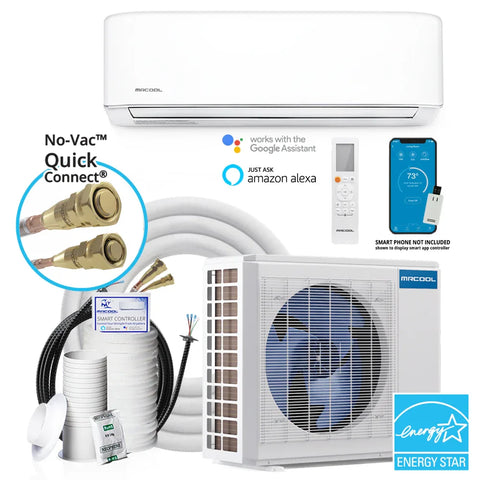
Every MRCOOL DIY system we sell (DIY Select, DIY EasyPro and DIY 5th Gen) can be run from your phone through the MRCOOL app over Wi-Fi. MRCOOL calls the app MRCOOL SmartHVAC in the App Store and Google Play. This is the Wi-Fi control setup in plain steps, plus the snags that stop most people on the first try.
What do I need before I start?
- The Wi-Fi dongle installed. On the DIY 5th Gen it plugs into a USB port on the indoor unit behind the front panel, and the quick start guide shows where. Check your manual for your line.
- Your home Wi-Fi name and password, on the 2.4 GHz band.
- Decent signal at the indoor unit. Stand next to it with your phone: two bars or better is a good sign.
- A router with internet access, no proxy or login page, and client isolation (sometimes called IP isolation or AP isolation) turned off. Guest networks often have isolation turned on, so use your main network.
- Your phone with Wi-Fi on and mobile data off during setup. On an iPhone, allow location and Local Network access for the app when it asks.
- The system powered on at the breaker.
Why use the app instead of the remote?
The remote works fine in the room. The app lets you change things when you aren't there. Turn on heat at a cabin two hours before you drive up. Shut off the garage unit you left running in July. Check whether the basement is holding 70°F from your phone at work.
The app also gives you schedules, an eSaver setting, a usage history screen and every MRCOOL unit in the house in one list. And it is what links the system to Alexa and Google Assistant.
How do I connect a MRCOOL mini split to Wi-Fi?
These steps follow MRCOOL's Smart USB AC Controller manual. Screens can change between app versions, so keep your manual open on a second device.
- Install MRCOOL SmartHVAC from the App Store or Google Play and open it.
- Tap Sign Up, create your account, then sign in. Write the login down; you'll need it again for Alexa or Google.
- On the home screen, tap the add device button and choose the Wi-Fi controller from the list.
- Power on the mini split and tap Next.
- Go to your phone's Wi-Fi settings and join the network named SmartHVAC followed by a string of letters and numbers. This is the module talking to your phone directly.
- Return to the app. It shows the Wi-Fi networks the module can see.
- Pick your 2.4 GHz home network, type the password carefully and tap Connect.
- Wait for the module to join. Name the unit by room ("Bedroom", "Office") so voice commands are easy later.
- Pull down on the home screen to refresh. A green ring around the unit's icon means it is online.
Watch how a unit gets added in the app and where the mode, fan and schedule controls sit once it shows online.
On a system with more than one indoor unit, repeat the add-device steps for each one, and follow the setup notes in the multi-zone manuals for your system.
Next: which settings and schedules cut your power bill?
How do I set up Alexa or Google Assistant?
Finish the app setup first and confirm the unit shows online. Voice control rides on top of the SmartHVAC account.
- Open the Alexa app or the Google Home app.
- Search for MRCOOL in the skills or "works with" section.
- Link it using the same SmartHVAC login you created above.
- Let the assistant discover devices. Your units appear under the names you gave them.
Short, distinct names work best. "Set bedroom to 72" is easier for a speaker to understand than "Set master bedroom mini split to 72".
Why won't my MRCOOL connect to Wi-Fi?
| What you see | Likely cause | What to try |
|---|---|---|
| Your home network isn't in the list | It broadcasts on 5 GHz only, or both bands share one name | Turn on 2.4 GHz in your router app, or split the bands into two names during setup |
| Connects, then shows offline | Weak signal at the indoor unit | Add a mesh node or extender near that room |
| Fails at the last step | Wrong password, a guest network or client isolation | Retype the password, use your main network, turn isolation off |
| Phone keeps dropping the SmartHVAC network | The phone jumps back to mobile data or your home Wi-Fi | Turn mobile data off and "forget" nearby networks until setup is done |
| iPhone can't find the device | Location or Local Network permission is off | Turn both on in iPhone Settings for the app |
| It worked until you got a new router | The module still has the old network saved | Put the module back in setup mode and use Change Wi-Fi |
To put the module back in setup mode, MRCOOL's manual says to press the LED button on the remote 7 times within one minute. The SmartHVAC network then appears again on your phone, and you choose Device Wi-Fi, then Change Wi-Fi, in the unit's settings.
Still stuck after that? The Wi-Fi module manual lists MRCOOL's app support contacts, and you can open a ticket at support.mrcool.com. Our phone line is for sizing and choosing a system, so we can't troubleshoot an app connection by phone.
What if my setup is different?
What if there's no Wi-Fi where the unit is?
The remote runs every mode without internet. The app is a convenience, not a requirement, so a garage or cabin without Wi-Fi still gets full heating and cooling.
What if I change my router or Wi-Fi password?
The module won't follow the change on its own. Use the setup mode steps above for each indoor unit.
What if I want a wall thermostat instead?
Skip the MRCOOL Smart Thermostat (MST04). It is built for ducted systems, not mini splits. Use the remote and the app.
What if I want the app to read the room temperature where I sit?
That is the Follow Me feature, and it works through the remote's sensor on the DIY EasyPro and DIY 5th Gen. The DIY Select doesn't have it, so it goes by the sensor in the indoor unit.
What should I do next?
Set up one unit, test it from outside the house on mobile data, then add the rest and set a weekday schedule. If you're still choosing a system and want to know which line has the features you'll use, look at our comparison chart or call +1 (844) 999-9725, Monday to Friday, 9 AM to 5 PM EST, for sizing help.